• דף הבית
    • אינדקס קישורים
    • פוסטים אחרונים
    • משתמשים
    • חיפוש בהגדרות המתקדמות
    • חיפוש גוגל בפורום
    • ניהול המערכת
    • ניהול המערכת - שרת private
    • הרשמה
    • התחברות
    1. דף הבית
    2. מייבין במקצת
    מ
    מנותק
    • פרופיל
    • עוקב אחרי 1
    • עוקבים 1
    • נושאים 1
    • פוסטים 12
    • קבוצות 0

    מייבין במקצת

    @מייבין במקצת

    11
    מוניטין
    7
    צפיות בפרופיל
    12
    פוסטים
    1
    עוקבים
    1
    עוקב אחרי
    תאריך הצטרפות
    נראה לאחרונה
    מיקום אני קבעתי את מושבי... בבית המדרש

    מייבין במקצת הפסקת מעקב מעקב

    הפוסטים הטובים ביותר שנוצרו על ידי מייבין במקצת

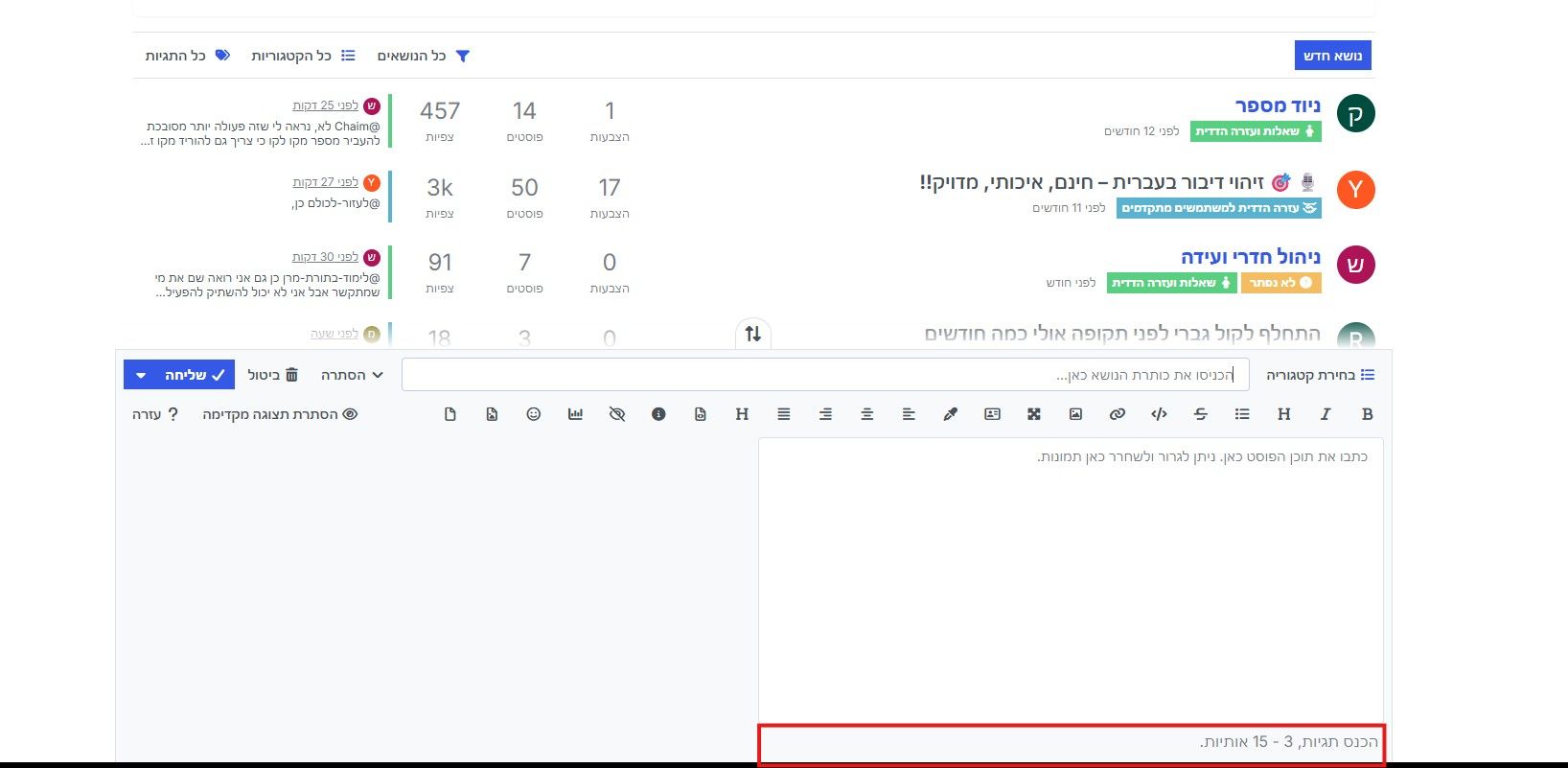
    • כתיבת פוסטים מסודרים בפורום

      כתיבת פוסטים מסודרים בפורום, בלי מאמץ

      אני לא יודע אם זה שווה נושא, אבל לאחר שראיתי יותר מדי הרבה פוסטים שנראה שלכותב לא היה הרבה כח לכתוב אותם החלטתי לכתוב על זה.


      הרבה פעמים יש לי (ואני מניח שלעוד הרבה מכם) משהו להעלות לפורום, וזה משהו שיכול לעזור, אבל לא תמיד יש לי כח וזמן להתחיל לסדר את הפוסט, לפסק אותו נכון, להגדיל שורות, לעשות כותרות וכן על זה הדרך.

      ומכיוון שכשאני מתעצל לעשות משהו - אני מיד פונה ל-AI שיעשה אותו במקומי 😉

      אז פניתי ל-AI עם התוכן של הפוסט שכתבתי, וביקשתי ממנו שיכתוב לי קוד MD בשביל הפוסט בפורום, בלי לשנות את התוכן והניסוח של הפוסט עצמו.

      והוא כמובן נתן לי בשמחה, וגם הוסיף לי פרומפט שאני יוכל לכתוב לו (או לחברים שלו) כדי לעשות את זה גם בפעמים הבאות.


      והנה הפרומפט לפניכם:

      תהפוך את הטקסט הבא לפוסט Markdown (MD) מעוצב ומרשים לפורום NodeBB.
      שמור על התוכן המקורי בלי לשנות או להוסיף תוכן או ניסוח.
      אם יש פיסוק קיים - שמור עליו.
      אם אין פיסוק - הוסף פיסוק תקין בעברית.
      
      השתמש בכל אפשרויות העיצוב הנתמכות בפורום כשמתאים:
      כותרות, כותרות משנה, טקסט מודגש, טקסט נטוי, קו תחתי אם נתמך, קווים מפרידים, ציטוטים, רשימות תבליטים, רשימות ממוספרות, טבלאות אם מתאים, קוד/תיבות קוד אם מתאים, קישורים, רווחים נכונים בין פסקאות, חלוקה לקטעים, הדגשת מילים חשובות, וסידור חזותי נעים לקריאה.
      
      המטרה: להפוך את הטקסט לפוסט יפה, מקצועי, ברור, מושך לעין וקל לקריאה.
      
      תחזיר רק קוד MD מוכן להדבקה בפורום.
      
      הטקסט:
      [הדבק כאן את תוכן הפוסט]
      

      בהצלחה!

      שימו ❤️ - הפוסט לא נועד לעודד כתיבת פוסטים על ידי AI בכל צורה ועניין הפוסט הזה נכתב אך ורק בשביל סידור הפוסטים ועיצובם כדי שיהיו נוחים ונעימים לקריאה

      פורסם בעל הפורום
      מ
      מייבין במקצת
    • RE: יש עוזר AI להגדרות של ימות המשיח?

      עיין כאן

      פורסם בעזרה הדדית למשתמשים מתקדמים
      מ
      מייבין במקצת
    • RE: "ומתן שכרה בצידה"💰💵 משהו ש-קל! למייבינים🧐 במקצת ומעלה🔝

      @יעקב-דוד-0 תודה, צודק

      פורסם בשאלות ועזרה הדדית
      מ
      מייבין במקצת
    • RE: שיוך מספר למערכת שלי

      @sh0548534047 הסברתי על זה פה - זה לא בדיוק אותו דבר - אבל דומה

      פורסם בעזרה הדדית למשתמשים מתקדמים
      מ
      מייבין במקצת
    • RE: "ומתן שכרה בצידה"💰💵 משהו ש-קל! למייבינים🧐 במקצת ומעלה🔝

      @lavitoren-הטי-ל קיים כבר

      פורסם בשאלות ועזרה הדדית
      מ
      מייבין במקצת
    • RE: קליקי

      קיים אבל לא תמיד עובד

      לי זה אף פעם לא עבד יש כאלה שאמרו שזה עבד להם

      בכל מקרה לא כדאי לסמוך על השרתים שלו במשחקים מרובי משתמשים

      פורסם בשאלות ועזרה הדדית
      מ
      מייבין במקצת
    • RE: how to make a bookmark setting

      @15183299387 Apologies... I didn't understand you well...

      In any case, to make a system that allows the listener to save up to 9 different locations and return to them later using the # key from the main menu - you will define the following settings:


      1. Defining the # key in the main menu

      In the main extension, define:

      type=menu
      hash_extension=yes
      

      Explanation: The type=menu setting defines the extension as a menu and the hash_extension=yes setting turns the # key into an address to an internal extension called Hash.


      2. Creating the bookmark management extension (Hash folder)

      Create a folder called Hash under the main extension. Inside it, create 9 extensions (folders) numbered 1-9. Each extension (for example Hash/5) will direct the listener to the appropriate extension that stores the location:

      In the ext.ini file of extension /Hash/5 (for example):

      type=go_to_folder
      go_to_folder=/Bookmarks/5
      

      So, pressing # and then 5 will move the listener to the extension that stores the fifth bookmark.


      3. Creating the bookmark extensions to store the location

      You need to create 9 extensions in the path /Bookmarks/1 to /Bookmarks/9. These extensions are the "mirrors" of your content lessons, and each of them will remember a separate location.

      In each such extension (for example /Bookmarks/5) set:

      type=playfile
      folder_to_play=the path to the extension where the lessons are located
      save_last_play=yes
      last_play_auto=yes
      
      • folder_to_play: The path to the extension where the actual lesson files are located.
      • save_last_play=yes: Causes the system to remember where the listener stopped in this extension.
      • last_play_auto=yes: Causes the system to automatically return the listener to the exact point where they stopped as soon as they enter the extension.

      4. Setting the 8 key to save a bookmark while listening

      So that the listener can press 8 in the middle of a lesson and choose which bookmark to save the location to, set in the original lessons extension (where the lessons are actually located):

      control_play8=go_to_folder
      playfile_control_play_8_goto=/SelectSlot
      

      This setting will take the listener to a new menu extension called SelectSlot when pressing 8.


      5. Creating a bookmark selection menu (SelectSlot)

      Within the SelectSlot extension, create 9 internal extensions (1-9). Each of them will simply take the listener to continue listening through the selected bookmark.

      For example, in the ext.ini file of the /SelectSlot/5 extension:

      type=go_to_folder
      go_to_folder=/Bookmarks/5
      

      When the listener types 8 and then 5, they will be taken to the /Bookmarks/5 extension. Since this is an extension that "mirrors" the same files (via folder_to_play), they will continue listening as usual, but from now on their location will be saved under bookmark 5.

      I hope the translation was clear enough and didn't disrupt the guide...

      Good luck!

      פורסם בשאלות ועזרה הדדית
      מ
      מייבין במקצת
    • RE: how to make a bookmark setting

      @15183299387 Explanation in English:

      I didn't quite understand whether when you say "bookmark" you mean an extension from which you jump to another extension, or whether you mean returning to the last playback position. Either way, here's a guide on how to do both options I mentioned:


      Option 1: Create a "Bookmarks" menu (shortcuts)

      To make pressing # in the main menu open a selection menu between options 1 to 9, follow the following guide:

      Step 1: Set the # key as an independent extension in the main menu

      By default, the pound key (#) is used to go back one step. To make it an accessible extension, you must define in the ext.ini file of the main extension (/):

      type=menu
      hash_extension=yes
      
      • Explanation: The type=menu line defines the main menu as a menu extension, and the second definition allows the system to recognize the # key as an address to an internal extension called Hash.

      Step 2: Create the Hash folder and define it as a menu

      1. You must create a new folder under the main extension and name it exactly Hash (make sure to capitalize the H).
      2. Inside this folder, create an ext.ini file and set it as a menu extension:
      type=menu
      
      1. Upload an audio file named M1000 ("Menu Message") to the Hash folder, in which you will record the instructions to the listener (for example: "To select bookmark 1, press 1, for bookmark 2, press 2..." etc.).

      Step 3: Creating the bookmarks (references to extensions 1-9)

      Inside the Hash folder, you must create 9 extensions (folders) numbered from 1 to 9. In each of them you can define the destination to which the bookmark should lead.
      For example, to have bookmark number 1 lead to extension 5, set the following in the ext.ini file inside the Hash/1 folder:

      type=go_to_folder
      go_to_folder=/5
      

      Option 2: Return to last played position

      If you intended to give the listener the option to return to the specific point where they stopped listening last time, you have two ways:

      Option A: Automatic return on entry to the extension

      On the extension to which the listener returns, set:

      check_last_play=yes
      

      When the listener enters this extension, the system will play: "To return to the last position you listened to... press 1" (M3320 system message).

      Option B: Manual "Return to Last Position" Extension

      You can create an extension where the listener will dial the extension number where they stopped listening:

      type=last_play
      last_play_of=tfr
      
      • type=last_play: Defines the extension as a module for returning to the last position.
      • last_play_of=tfr: Allows the listener to manually dial the extension number.

      How ​​to dial by the listener:
      The system will play the message M2551: "Please dial the extension number where you listened and left... Between extensions, dial * and at the end, dial a semicolon".
      Example: To return to the last position on extension 1/2/1, the listener will dial 1*2*1#.


      Required setting (saving the position)

      In order for the system to "remember" where the listener stopped, you must set in the extensions where the listener hears the content (or in the general ivr.ini file so that it applies to the entire system):

      save_last_play=yes||
      

      הסבר בעברית:

      לא הבנתי בדיוק האם כשאתה אומר "סימנייה" אתה מתכוון לשלוחה שממנה אתה קופץ לשלוחה אחרת, או שאתה מתכוון לחזרה למיקום השמעה אחרון. כך או כך, הנה מדריך איך לעשות את שתי האופציות שהזכרתי:


      אפשרות 1: יצירת תפריט "סימניות" (קיצורי דרך)

      כדי לעשות שהקשה על # בתפריט הראשי תפתח תפריט בחירה בין האפשרויות 1 עד 9, תפעל לפי המדריך הבא:

      שלב 1: הגדרת מקש # כשלוחה עצמאית בתפריט הראשי

      כברירת מחדל, מקש הסולמית (#) משמש לחזרה שלב אחד אחורה. כדי להפוך אותו לשלוחה שניתן להיכנס אליה, עליך להגדיר בקובץ ext.ini של השלוחה הראשית (/):

      type=menu
      hash_extension=yes
      
      • הסבר: השורה type=menu מגדירה את התפריט הראשי כשלוחת תפריט, וההגדרה השנייה מאפשרת למערכת לזהות את המקש # ככתובת לשלוחה פנימית בשם Hash.

      שלב 2: יצירת תיקיית ה-Hash והגדרתה כתפריט

      1. עליך ליצור תיקייה חדשה תחת השלוחה הראשית ולקרוא לה בדיוק בשם Hash (יש להקפיד על H גדולה).
      2. בתוך תיקייה זו, צור קובץ ext.ini והגדר אותו כשלוחת תפריט:
        type=menu
        
      3. העלה לתיקיית Hash קובץ שמע בשם M1000 ("הודעת תפריט"), שבו תקליט את ההנחיות למאזין (למשל: "לבחירת סימניה 1 הקישו 1, לסימניה 2 הקישו 2..." וכו').

      שלב 3: יצירת הסימניות (הפניות לשלוחות 1-9)

      בתוך תיקיית Hash, עליך ליצור 9 שלוחות (תיקיות) ממוספרות מ-1 עד 9. בכל אחת מהן תוכל להגדיר את היעד שאליו הסימנייה אמורה להוביל.
      לדוגמה, כדי שסימניה מספר 1 תוביל לשלוחה 5, הגדר בקובץ ext.ini שבתוך תיקייה Hash/1:

      type=go_to_folder
      go_to_folder=/5
      

      אפשרות 2: חזרה למיקום השמעה אחרון

      אם התכוונת לתת אפשרות למאזין לחזור לנקודה המסוימת שבה הוא הפסיק להאזין בפעם הקודמת, יש לך שתי דרכים:

      אופציה א': חזרה אוטומטית בכניסה לשלוחה

      בשלוחה שאליה המאזין חוזר, הגדר:

      check_last_play=yes
      

      כאשר המאזין ייכנס לשלוחה זו, המערכת תשמיע לו: "לחזרה למיקום האחרון אליו האזנתם... הקישו 1" (הודעת מערכת M3320).

      אופציה ב': שלוחת "חזרה למיקום אחרון" ידנית

      ניתן ליצור שלוחה שבה המאזין יקיש את מספר השלוחה שבה הוא הפסיק לשמוע:

      type=last_play
      last_play_of=tfr
      
      • type=last_play: מגדיר את השלוחה כמודול לחזרה למיקום אחרון.
      • last_play_of=tfr: מאפשר למאזין להקיש ידנית את מספר השלוחה.

      אופן ההקשה על ידי המאזין:
      המערכת תשמיע את הודעה M2551: "אנא הקישו את מספר השלוחה בה האזנתם ויצאתם... בין שלוחה לשלוחה הקישו * ובסיום הקישו סולמית".
      דוגמה: כדי לחזור למיקום האחרון בשלוחה 1/2/1, המאזין יקיש 1*2*1#.


      הגדרת חובה (שמירת המיקום)

      כדי שהמערכת תוכל "לזכור" היכן המאזין עצר, עליך להגדיר בשלוחות שבהן המאזין שומע את התוכן (או בקובץ ivr.ini הכללי כדי שזה יחול על כל המערכת):

      save_last_play=yes
      פורסם בשאלות ועזרה הדדית
      מ
      מייבין במקצת

    פוסטים אחרונים שנוצרו על ידי מייבין במקצת

    • RE: שכפול בהקלדת טקסט עזרה !! 🙏🙏🙏🙏🙏

      @לימוד-בתורת-מרן API? כי אם לא אז באמת שאין לי שמץ..

      פורסם בשאלות ועזרה הדדית
      מ
      מייבין במקצת
    • RE: שכפול בהקלדת טקסט עזרה !! 🙏🙏🙏🙏🙏

      @לימוד-בתורת-מרן כתב בשכפול בהקלדת טקסט עזרה !! 🙏🙏🙏🙏🙏:

      וכאן בא הבן ושואל: איך עושים לינק (שכפול)

      לא נראה לי שאפשר...

      @לימוד-בתורת-מרן כתב בשכפול בהקלדת טקסט עזרה !! 🙏🙏🙏🙏🙏:

      והאם הגדרה של שכפול בהקלטות עובדת על ידי הגדרת

      כן

      פורסם בשאלות ועזרה הדדית
      מ
      מייבין במקצת
    • RE: חמש הצעות למהפכה הבאה בימות המשיח: מבינה מלאכותית ועד "מצב חברותא" 🚀💎

      @יהודה-צ.-כ. כתב בחמש הצעות למהפכה הבאה בימות המשיח: מבינה מלאכותית ועד "מצב חברותא" 🚀💎:

      למה קצת מרגיש לי שהפוסט נכתב על ידי ai?

      לי זה לא רק מרגיש...

      פורסם בבקשות לפיתוח
      מ
      מייבין במקצת
    • RE: שיוך מספר למערכת שלי

      @sh0548534047 זה התוכן של הפוסט:

      לא יודע אם זה שווה נושא, אבל אחרי שכמה שאלו אותי (ולא רק אותי) איך לעשות את זה - פתחתי את הנושא הזה.

      לאחרונה נתקלתי בהרבה מערכות שעשו תפריט לשיוך מספרים למערכת, כששלוחה 1 מפנה לפתיחת מערכת IVR חדשה ושלוחה 2 משייכת את המספר למערכת. אין לי מושג איך הם עשו את זה, אבל חשבתי על רעיון איך לעשות משהו דומה בצורה פשוטה יחסית:

      פותחים שלוחת תפריט, ובתוכה פותחים את שלוחה 1 ומגדירים אותה כניתוב לפתיחת מערכת IVR חדשה:

      type=routing_yemot
      routing_yemot_number=0733509000
      

      פותחים (בתוך שלוחת התפריט) את שלוחה 2 ומגדירים אותה כשלוחת העתקת מודלים של טלטופ:

      type=api
      api_link=https://teletop.biz/agdarot/copy.php
      api_add_0=password=סיסמת הניהול של המערכת הנוכחית
      api_add_1=key_t=השלוחה להעתקה
      

      עכשיו רק נשאר להגדיר את השלוחה להעתקה. נניח שזה יהיה בשלוחת התפריט של השיוך (5) ואז שלוחה 9. ההגדרות הם:

      type=routing_yemot
      routing_yemot_number=מספר המערכת שלכם
      

      שימו ❤️: בשיטה הזאת המאזין יכול לבחור לאיזה שלוחה להעתיק את שלוחת הניתוב למערכת שלכם, ככה שלא חייב שהוא ישים את זה בשלוחה הראשית...

      בהצלחה!
      פורסם בעזרה הדדית למשתמשים מתקדמים
      מ
      מייבין במקצת
    • RE: שיוך מספר למערכת שלי

      @sh0548534047 הסברתי על זה פה - זה לא בדיוק אותו דבר - אבל דומה

      פורסם בעזרה הדדית למשתמשים מתקדמים
      מ
      מייבין במקצת
    • RE: how to make a bookmark setting

      @15183299387 Apologies... I didn't understand you well...

      In any case, to make a system that allows the listener to save up to 9 different locations and return to them later using the # key from the main menu - you will define the following settings:


      1. Defining the # key in the main menu

      In the main extension, define:

      type=menu
      hash_extension=yes
      

      Explanation: The type=menu setting defines the extension as a menu and the hash_extension=yes setting turns the # key into an address to an internal extension called Hash.


      2. Creating the bookmark management extension (Hash folder)

      Create a folder called Hash under the main extension. Inside it, create 9 extensions (folders) numbered 1-9. Each extension (for example Hash/5) will direct the listener to the appropriate extension that stores the location:

      In the ext.ini file of extension /Hash/5 (for example):

      type=go_to_folder
      go_to_folder=/Bookmarks/5
      

      So, pressing # and then 5 will move the listener to the extension that stores the fifth bookmark.


      3. Creating the bookmark extensions to store the location

      You need to create 9 extensions in the path /Bookmarks/1 to /Bookmarks/9. These extensions are the "mirrors" of your content lessons, and each of them will remember a separate location.

      In each such extension (for example /Bookmarks/5) set:

      type=playfile
      folder_to_play=the path to the extension where the lessons are located
      save_last_play=yes
      last_play_auto=yes
      
      • folder_to_play: The path to the extension where the actual lesson files are located.
      • save_last_play=yes: Causes the system to remember where the listener stopped in this extension.
      • last_play_auto=yes: Causes the system to automatically return the listener to the exact point where they stopped as soon as they enter the extension.

      4. Setting the 8 key to save a bookmark while listening

      So that the listener can press 8 in the middle of a lesson and choose which bookmark to save the location to, set in the original lessons extension (where the lessons are actually located):

      control_play8=go_to_folder
      playfile_control_play_8_goto=/SelectSlot
      

      This setting will take the listener to a new menu extension called SelectSlot when pressing 8.


      5. Creating a bookmark selection menu (SelectSlot)

      Within the SelectSlot extension, create 9 internal extensions (1-9). Each of them will simply take the listener to continue listening through the selected bookmark.

      For example, in the ext.ini file of the /SelectSlot/5 extension:

      type=go_to_folder
      go_to_folder=/Bookmarks/5
      

      When the listener types 8 and then 5, they will be taken to the /Bookmarks/5 extension. Since this is an extension that "mirrors" the same files (via folder_to_play), they will continue listening as usual, but from now on their location will be saved under bookmark 5.

      I hope the translation was clear enough and didn't disrupt the guide...

      Good luck!

      פורסם בשאלות ועזרה הדדית
      מ
      מייבין במקצת
    • RE: how to make a bookmark setting

      @15183299387 Explanation in English:

      I didn't quite understand whether when you say "bookmark" you mean an extension from which you jump to another extension, or whether you mean returning to the last playback position. Either way, here's a guide on how to do both options I mentioned:


      Option 1: Create a "Bookmarks" menu (shortcuts)

      To make pressing # in the main menu open a selection menu between options 1 to 9, follow the following guide:

      Step 1: Set the # key as an independent extension in the main menu

      By default, the pound key (#) is used to go back one step. To make it an accessible extension, you must define in the ext.ini file of the main extension (/):

      type=menu
      hash_extension=yes
      
      • Explanation: The type=menu line defines the main menu as a menu extension, and the second definition allows the system to recognize the # key as an address to an internal extension called Hash.

      Step 2: Create the Hash folder and define it as a menu

      1. You must create a new folder under the main extension and name it exactly Hash (make sure to capitalize the H).
      2. Inside this folder, create an ext.ini file and set it as a menu extension:
      type=menu
      
      1. Upload an audio file named M1000 ("Menu Message") to the Hash folder, in which you will record the instructions to the listener (for example: "To select bookmark 1, press 1, for bookmark 2, press 2..." etc.).

      Step 3: Creating the bookmarks (references to extensions 1-9)

      Inside the Hash folder, you must create 9 extensions (folders) numbered from 1 to 9. In each of them you can define the destination to which the bookmark should lead.
      For example, to have bookmark number 1 lead to extension 5, set the following in the ext.ini file inside the Hash/1 folder:

      type=go_to_folder
      go_to_folder=/5
      

      Option 2: Return to last played position

      If you intended to give the listener the option to return to the specific point where they stopped listening last time, you have two ways:

      Option A: Automatic return on entry to the extension

      On the extension to which the listener returns, set:

      check_last_play=yes
      

      When the listener enters this extension, the system will play: "To return to the last position you listened to... press 1" (M3320 system message).

      Option B: Manual "Return to Last Position" Extension

      You can create an extension where the listener will dial the extension number where they stopped listening:

      type=last_play
      last_play_of=tfr
      
      • type=last_play: Defines the extension as a module for returning to the last position.
      • last_play_of=tfr: Allows the listener to manually dial the extension number.

      How ​​to dial by the listener:
      The system will play the message M2551: "Please dial the extension number where you listened and left... Between extensions, dial * and at the end, dial a semicolon".
      Example: To return to the last position on extension 1/2/1, the listener will dial 1*2*1#.


      Required setting (saving the position)

      In order for the system to "remember" where the listener stopped, you must set in the extensions where the listener hears the content (or in the general ivr.ini file so that it applies to the entire system):

      save_last_play=yes||
      

      הסבר בעברית:

      לא הבנתי בדיוק האם כשאתה אומר "סימנייה" אתה מתכוון לשלוחה שממנה אתה קופץ לשלוחה אחרת, או שאתה מתכוון לחזרה למיקום השמעה אחרון. כך או כך, הנה מדריך איך לעשות את שתי האופציות שהזכרתי:


      אפשרות 1: יצירת תפריט "סימניות" (קיצורי דרך)

      כדי לעשות שהקשה על # בתפריט הראשי תפתח תפריט בחירה בין האפשרויות 1 עד 9, תפעל לפי המדריך הבא:

      שלב 1: הגדרת מקש # כשלוחה עצמאית בתפריט הראשי

      כברירת מחדל, מקש הסולמית (#) משמש לחזרה שלב אחד אחורה. כדי להפוך אותו לשלוחה שניתן להיכנס אליה, עליך להגדיר בקובץ ext.ini של השלוחה הראשית (/):

      type=menu
      hash_extension=yes
      
      • הסבר: השורה type=menu מגדירה את התפריט הראשי כשלוחת תפריט, וההגדרה השנייה מאפשרת למערכת לזהות את המקש # ככתובת לשלוחה פנימית בשם Hash.

      שלב 2: יצירת תיקיית ה-Hash והגדרתה כתפריט

      1. עליך ליצור תיקייה חדשה תחת השלוחה הראשית ולקרוא לה בדיוק בשם Hash (יש להקפיד על H גדולה).
      2. בתוך תיקייה זו, צור קובץ ext.ini והגדר אותו כשלוחת תפריט:
        type=menu
        
      3. העלה לתיקיית Hash קובץ שמע בשם M1000 ("הודעת תפריט"), שבו תקליט את ההנחיות למאזין (למשל: "לבחירת סימניה 1 הקישו 1, לסימניה 2 הקישו 2..." וכו').

      שלב 3: יצירת הסימניות (הפניות לשלוחות 1-9)

      בתוך תיקיית Hash, עליך ליצור 9 שלוחות (תיקיות) ממוספרות מ-1 עד 9. בכל אחת מהן תוכל להגדיר את היעד שאליו הסימנייה אמורה להוביל.
      לדוגמה, כדי שסימניה מספר 1 תוביל לשלוחה 5, הגדר בקובץ ext.ini שבתוך תיקייה Hash/1:

      type=go_to_folder
      go_to_folder=/5
      

      אפשרות 2: חזרה למיקום השמעה אחרון

      אם התכוונת לתת אפשרות למאזין לחזור לנקודה המסוימת שבה הוא הפסיק להאזין בפעם הקודמת, יש לך שתי דרכים:

      אופציה א': חזרה אוטומטית בכניסה לשלוחה

      בשלוחה שאליה המאזין חוזר, הגדר:

      check_last_play=yes
      

      כאשר המאזין ייכנס לשלוחה זו, המערכת תשמיע לו: "לחזרה למיקום האחרון אליו האזנתם... הקישו 1" (הודעת מערכת M3320).

      אופציה ב': שלוחת "חזרה למיקום אחרון" ידנית

      ניתן ליצור שלוחה שבה המאזין יקיש את מספר השלוחה שבה הוא הפסיק לשמוע:

      type=last_play
      last_play_of=tfr
      
      • type=last_play: מגדיר את השלוחה כמודול לחזרה למיקום אחרון.
      • last_play_of=tfr: מאפשר למאזין להקיש ידנית את מספר השלוחה.

      אופן ההקשה על ידי המאזין:
      המערכת תשמיע את הודעה M2551: "אנא הקישו את מספר השלוחה בה האזנתם ויצאתם... בין שלוחה לשלוחה הקישו * ובסיום הקישו סולמית".
      דוגמה: כדי לחזור למיקום האחרון בשלוחה 1/2/1, המאזין יקיש 1*2*1#.


      הגדרת חובה (שמירת המיקום)

      כדי שהמערכת תוכל "לזכור" היכן המאזין עצר, עליך להגדיר בשלוחות שבהן המאזין שומע את התוכן (או בקובץ ivr.ini הכללי כדי שזה יחול על כל המערכת):

      save_last_play=yes
      פורסם בשאלות ועזרה הדדית
      מ
      מייבין במקצת
    • כתיבת פוסטים מסודרים בפורום

      כתיבת פוסטים מסודרים בפורום, בלי מאמץ

      אני לא יודע אם זה שווה נושא, אבל לאחר שראיתי יותר מדי הרבה פוסטים שנראה שלכותב לא היה הרבה כח לכתוב אותם החלטתי לכתוב על זה.


      הרבה פעמים יש לי (ואני מניח שלעוד הרבה מכם) משהו להעלות לפורום, וזה משהו שיכול לעזור, אבל לא תמיד יש לי כח וזמן להתחיל לסדר את הפוסט, לפסק אותו נכון, להגדיל שורות, לעשות כותרות וכן על זה הדרך.

      ומכיוון שכשאני מתעצל לעשות משהו - אני מיד פונה ל-AI שיעשה אותו במקומי 😉

      אז פניתי ל-AI עם התוכן של הפוסט שכתבתי, וביקשתי ממנו שיכתוב לי קוד MD בשביל הפוסט בפורום, בלי לשנות את התוכן והניסוח של הפוסט עצמו.

      והוא כמובן נתן לי בשמחה, וגם הוסיף לי פרומפט שאני יוכל לכתוב לו (או לחברים שלו) כדי לעשות את זה גם בפעמים הבאות.


      והנה הפרומפט לפניכם:

      תהפוך את הטקסט הבא לפוסט Markdown (MD) מעוצב ומרשים לפורום NodeBB.
      שמור על התוכן המקורי בלי לשנות או להוסיף תוכן או ניסוח.
      אם יש פיסוק קיים - שמור עליו.
      אם אין פיסוק - הוסף פיסוק תקין בעברית.
      
      השתמש בכל אפשרויות העיצוב הנתמכות בפורום כשמתאים:
      כותרות, כותרות משנה, טקסט מודגש, טקסט נטוי, קו תחתי אם נתמך, קווים מפרידים, ציטוטים, רשימות תבליטים, רשימות ממוספרות, טבלאות אם מתאים, קוד/תיבות קוד אם מתאים, קישורים, רווחים נכונים בין פסקאות, חלוקה לקטעים, הדגשת מילים חשובות, וסידור חזותי נעים לקריאה.
      
      המטרה: להפוך את הטקסט לפוסט יפה, מקצועי, ברור, מושך לעין וקל לקריאה.
      
      תחזיר רק קוד MD מוכן להדבקה בפורום.
      
      הטקסט:
      [הדבק כאן את תוכן הפוסט]
      

      בהצלחה!

      שימו ❤️ - הפוסט לא נועד לעודד כתיבת פוסטים על ידי AI בכל צורה ועניין הפוסט הזה נכתב אך ורק בשביל סידור הפוסטים ועיצובם כדי שיהיו נוחים ונעימים לקריאה

      פורסם בעל הפורום
      מ
      מייבין במקצת
    • RE: קליקי

      קיים אבל לא תמיד עובד

      לי זה אף פעם לא עבד יש כאלה שאמרו שזה עבד להם

      בכל מקרה לא כדאי לסמוך על השרתים שלו במשחקים מרובי משתמשים

      פורסם בשאלות ועזרה הדדית
      מ
      מייבין במקצת
    • RE: יש עוזר AI להגדרות של ימות המשיח?

      עיין כאן

      פורסם בעזרה הדדית למשתמשים מתקדמים
      מ
      מייבין במקצת